Windows App
Microsoft CorporationBusiness
4.31.68K Reviews
- Version
- 11.0.26071.13915
- Installs
- 10.00M
- Age Rating
- Everyone
Screenshots
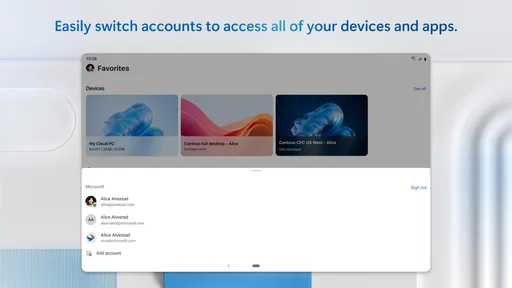
Our Review of Windows App
 Analysis by Appyee
Working from a phone becomes much less straightforward when the files, programs, and company tools you need are sitting on a Windows PC somewhere else. Windows App is built around that exact situation: it lets me connect to remote PCs and virtual apps from a mobile device. I see it as a practical business tool rather than a general-purpose phone workspace, and its usefulness rises or falls with the quality of the connection between the device in my hand and the computer I need to reach.
Microsoft Corporation positions this free Business app as a way to bring a remote Windows environment into reach. That makes it interesting for employees, administrators, consultants, and anyone who occasionally needs a desktop application while away from a desk. It is available for Everyone, runs on devices using Android or iOS, and requires an operating system version of at least 10. The current release is 11.0.0.120, while its popularity is reflected in more than 10 million installs, a 3.9 average from roughly 34 thousand ratings, and about 1.6 thousand written reviews.
I would not choose it simply because I want a larger screen on my phone. I would choose it because a particular Windows computer or virtual application is necessary. That distinction matters. The app does not replace a normal mobile productivity suite, cloud storage service, or remote-support tool. Its central promise is narrower and more useful: connect to an existing Windows work environment when local mobile apps are not enough.
How the connection changes the experience
I find the biggest difference comes from treating a remote session as a short, planned visit rather than a desktop you can casually leave open. Before connecting, I decide what I need to check and what will count as finished; that keeps a small screen and a variable network from turning a simple task into a long navigation exercise. It also makes the handoff back to my normal mobile tools much smoother.
When a stable network makes the app feel worthwhile
The best experience begins before I open the app. I need a reachable remote computer or virtual app, valid access details, and a network that can carry an interactive session without constant interruptions. Once those pieces are in place, Windows App can turn a phone or tablet into a doorway to work that would otherwise be tied to a particular PC.
That is valuable in situations where the task is occasional but important. I might be traveling and need to check something inside a Windows-only business program, or I might be away from my usual desk and need to continue a process that was already set up on a remote machine. Instead of rebuilding the workflow with mobile alternatives, I can return to the environment where the application and its working context already exist.
The trade-off is that remote access is interactive, not magical. Every tap, scroll, text entry, and screen change depends on communication between the phone and the remote environment. A fast connection can make the session feel direct; a congested or unstable one can make even simple navigation feel delayed. This is why I judge Windows App less like a standalone office app and more like a live connection to another computer.
For that reason, I would use it for reviewing a record, checking a desktop dashboard, starting a task, or making a small correction. I would be more cautious about using it for long stretches of detailed work on a small phone screen, especially when the connection is unpredictable. A tablet, a reliable Wi-Fi network, and a keyboard can make the same remote session considerably easier to manage, even though the app itself remains the same.
A realistic mobile workday
Imagine leaving the office and realizing that an internal Windows application contains the information needed for a meeting later that afternoon. The mobile version is either unavailable or does not expose the same workflow. With Windows App already configured, I can connect from a phone, inspect the relevant screen, copy down the necessary details, and close the session when finished.
That scenario shows where the app earns its place. I do not need to carry the office computer, and I do not need to maintain a second process in a different mobile application. The remote PC remains the source of the work, while the phone acts as the access point.
It also shows why preparation matters. I would not wait until an airport queue or an urgent call to discover that the remote computer is unavailable or that entering a long password on a phone is uncomfortable. A short test at home helps confirm that the intended device or virtual app can be reached and that the controls are manageable on the chosen screen.
Mobile use is most convincing when the task is specific. Looking up information, checking a running process, or handling a short administrative step feels reasonable. Editing a large spreadsheet, arranging several windows, or working through a dense desktop interface can become tiring. In those cases, the remote connection may function correctly while the mobile form factor remains the real limitation.
Remote PCs and virtual apps are not the same kind of session
One useful distinction is whether I am entering a complete remote PC or opening an individual virtual app. A full desktop can preserve the broader context of a work environment, which is helpful when several related tools or files are involved. A virtual app can be more focused when I only need one business program and do not want to navigate an entire desktop.
That choice affects how much screen space and attention the session demands. A single application may be easier to use on a phone, while a full remote desktop can offer more flexibility but also more menus, windows, and small controls. I would decide based on the task rather than automatically choosing the most expansive option.
This is also where Windows App differs from familiar alternatives. A cloud document editor works directly on the phone and is usually more tolerant of brief changes in connectivity. A remote-support app is often designed around helping another person or managing a device, not around returning to a personal business workspace. Windows App makes more sense when the remote Windows environment itself is the thing I need.
Where connectivity becomes the main limitation
When the network is weak, the problem is not limited to waiting for a page to load. Remote sessions can become difficult because the screen may update slowly, pointer movement may feel out of step, and text entry may not appear as quickly as expected. These small delays compound when I am navigating menus or trying to select a precise control.
I have learned to avoid treating a marginal connection as good enough for a sensitive task. If I need to make a change that must be accurate, I prefer to wait for a more dependable network rather than repeatedly tapping and hoping the remote screen catches up. A stable connection is not merely a comfort feature here; it directly affects confidence in what I am doing.
Network switching can also interrupt the rhythm of a session. Moving between mobile data and Wi-Fi, entering an area with poor reception, or using a crowded public hotspot may cause a pause at exactly the wrong time. Before starting anything important, I would save or confirm the state of the work inside the remote environment whenever the application allows it, then end the session deliberately instead of relying on a sudden disconnection.
Failure, recovery, and sensible habits
Remote access always needs a recovery plan. If the connection drops, I first check whether the phone still has internet access, then try the session again rather than repeatedly tapping the same control. If the remote computer itself cannot be reached, changing networks will not solve the underlying problem. This simple distinction prevents a lot of wasted time.
I also avoid making a series of uncertain actions during a delay. If a button does not appear to respond, sending several taps can create duplicate commands once the session catches up. Waiting briefly, checking the visible state, and then acting once is a safer habit. This is one of the less obvious skills required by remote desktop use on a phone: patience is part of accuracy.
Another practical habit is to keep the first connection short. I would connect, confirm that the expected desktop or virtual app appears, open the required tool, and then close the session cleanly. That test reveals problems with reachability, credentials, screen layout, or network quality before they become urgent. It also helps me decide whether the phone is suitable for the task or whether I should switch to a larger device.
Recovery is easier when the work is designed in small stages. If I am reviewing information, I can note the result before moving to another screen. If I am changing a setting, I can verify the outcome before continuing. Breaking a remote workflow into checkpoints reduces the chance that a brief interruption leaves me unsure about what happened.
Using less data without making the session unusable
Because the app displays a remote environment, the session can be more data-sensitive than ordinary text-based mobile work. I would avoid assuming that a short-looking task consumes very little network capacity, particularly when the remote screen is changing frequently. Video-heavy pages, animated interfaces, large scrolling areas, and repeated screen updates can all make a session less suitable for limited mobile data.
My preferred approach is to use dependable Wi-Fi for anything lengthy, reserve mobile data for short checks, and avoid unnecessary movement through the remote desktop. Opening only the program I need is more sensible than browsing around the entire remote computer. If the task can wait, postponing it until a trusted network is available is often better than forcing a fragile session.
There is a useful trade-off between convenience and control. A phone gives me access at the moment I need it, but that convenience can encourage me to start a session in poor conditions. I would treat the connection as part of the work environment: check its stability, keep the task focused, and stop when the session becomes too delayed to trust.
Screen size also affects data-conscious use indirectly. On a small display, I may spend longer opening and closing windows or repeatedly scrolling to find a control. That creates more interaction and more screen changes than the same job on a tablet. A larger mobile device can therefore improve not only comfort but also the efficiency of the connection by reducing unnecessary navigation.
Who will appreciate it, and who should skip it
Windows App is a strong fit for people whose work depends on a remote Windows PC or virtual application. It is especially sensible for staff who travel between locations, professionals who need occasional access outside the office, and users who already have a remote environment arranged for them. For these people, the app can remove the need to carry a dedicated computer for every short task.
It is also useful for someone who wants continuity rather than a collection of mobile substitutes. If a desktop program contains the exact workflow, settings, or business context needed, connecting to that environment can be less disruptive than exporting files and adapting them to another app.
I would skip it if I only need ordinary email, notes, documents, or cloud files that already have good mobile applications. Those tools are generally easier to operate locally on a phone and are less dependent on a live remote session. I would also look elsewhere if my main goal is technical support for another person, because a dedicated support product may offer a more suitable control model.
Users who regularly work in poor-connectivity areas should be cautious as well. The app’s value depends on reaching the remote resource, so it is not the right foundation for a workflow that must remain dependable while disconnected or constantly moving between weak networks. In that situation, a mobile-first tool with locally available work may be a better primary option.
What the rating and release details suggest in practice
Windows App is free, which makes trying it straightforward when the necessary remote setup already exists. The Everyone age rating also makes it broadly accessible from a content perspective, although access to a business computer or virtual app still depends on the organization and account arrangements behind the connection.
The app was released on March 18, 2020, and its current version is 11.0.0.120. The 3.9 average indicates a generally usable experience with enough friction that I would not call it universally effortless. The large install base shows that remote Windows access is a real need for many people, but popularity does not remove the practical requirements of a reachable computer, suitable credentials, and a reliable network.
I would therefore read the rating as a reason to test the app with my actual workflow rather than as a final verdict. Remote access experiences vary widely depending on the environment being connected to and the quality of the network. A smooth setup can make the app feel indispensable, while a poorly prepared connection can make it seem frustrating even when the phone software is not the main cause.
My connectivity verdict
After using Windows App as a bridge to remote Windows work, I see its biggest strength in focused access. It is not trying to turn a phone into a complete replacement for a desktop. Instead, it gives me a way to reach a Windows PC or virtual app when being physically present at that computer is inconvenient.
The deciding factor is not whether the app is free; it is whether the connection is dependable enough for the task. On a stable network, a short mobile session can save a trip, preserve access to a specialized workflow, and make occasional remote work much more practical. On an unstable network, the same session can become slow, uncertain, and uncomfortable.
My recommendation is clear for users who already have a remote Windows environment and need occasional mobile access: install it, test the exact workflow before you need it, and keep a larger screen available for demanding work. For people who simply want mobile productivity or offline-friendly access to documents, I would choose a native mobile alternative instead. Windows App is worthwhile when the remote Windows environment is essential, but its usefulness ends where connectivity, screen size, or remote access arrangements become the obstacle.
Privacy and Permissions
See what permissions an app requests and how it handles your data.
- Location
- approximate location (network-based), precise location (GPS and network-based)
- Photos/Media/Files
- read the contents of your USB storage, modify or delete the contents of your USB storage
- Storage
- read the contents of your USB storage, modify or delete the contents of your USB storage
- Camera
- take pictures and videos
- Microphone
- record audio
- Wi-Fi connection information
- view Wi-Fi connections
- Other
- view network connections, pair with Bluetooth devices, full network access, change your audio settings, control Near Field Communication, run at startup, prevent device from sleeping
Verdict
Strengths of Windows App
- Familiar Windows interface makes navigation easy for most users.
- Works smoothly with common Windows features and system tools.
- Supports multitasking with convenient window and taskbar integration.
- Regular updates can improve stability, security, and overall performance.
- Useful accessibility options help accommodate different user needs.
Limitations of Windows App
- Performance may vary depending on your Windows version and device hardware.
- Some features may require a Microsoft account or additional permissions.
- Background activity can use battery, memory, or system resources.
- Advanced options may feel confusing for users who expect a simpler setup.
- Certain functions may be limited compared with the mobile or web version.
Other Releases by Microsoft Corporation
View All
Microsoft OneDrive
Productivity4.6

Microsoft OneNote: Save Notes
Productivity4.6

Link to Windows
Productivity4.0

Microsoft PowerPoint
Productivity4.8
Similar Picks in This Category
View All
LinkedIn: Community & Network
LinkedIn3.8

Zoom Workplace
zoom.com4.1

Microsoft Teams
Microsoft Corporation4.6

Meta Business Suite
Meta Platforms, Inc.4.6

Webex Meetings
Cisco Systems, Inc.4.5

TeamViewer Remote Control
TeamViewer4.4
Frequently Asked Questions
What is Windows App, and what can I use it for?
Windows App is Microsoft’s remote access application for connecting to Windows computers, cloud PCs, virtual desktops, and selected Microsoft services from supported devices. After signing in with the appropriate work, school, or personal account, you can access a remote Windows environment, open applications, manage files, and continue tasks away from your main computer. The exact features depend on your organization’s setup and subscription.
Is Windows App free to download and use?
The Windows App itself is generally available to download without a separate purchase, but remote access is not automatically included for everyone. You may need a Windows 365 license, Azure Virtual Desktop access, Remote Desktop Services, or permission from an organization that provides the service. Before downloading, check whether your employer, school, or Microsoft subscription includes a compatible remote Windows environment.
What devices and platforms are supported by Windows App?
Windows App is designed for access across several platforms, including Windows, macOS, iOS, iPadOS, and web browsers, although availability and features can vary by version and region. A reliable internet connection is essential, and some functions may require a keyboard, mouse, touch support, or a newer operating system. Always verify the current store listing and Microsoft requirements for your device.
Do I need a Microsoft account or organization account to sign in?
Yes, Windows App normally requires an account connected to an available remote resource. Depending on how the service is configured, this may be a personal Microsoft account, a work or school account, or credentials supplied by an IT administrator. Simply installing the app does not provide access by itself. If your organization uses multi-factor authentication, you may also need to complete an additional security check.
Is Windows App secure, and should I use it on public Wi-Fi?
Windows App uses Microsoft’s authentication and remote access technologies, but your security still depends on the account, device, network, and organization policies involved. Keep the app and operating system updated, use a strong password and multi-factor authentication, and avoid saving credentials on shared devices. Public Wi-Fi can be used cautiously, but a trusted network or VPN is preferable when handling confidential work or personal information.
